Utility / Creative Tool · Live
QR Code Studio
Create and customize QR codes with a simple, easy-to-use experience.
A small studio for the things you want to share. Turn a website, a Wi-Fi network or a message into a QR code, make it yours, and download it for your next project.
Open QR Studio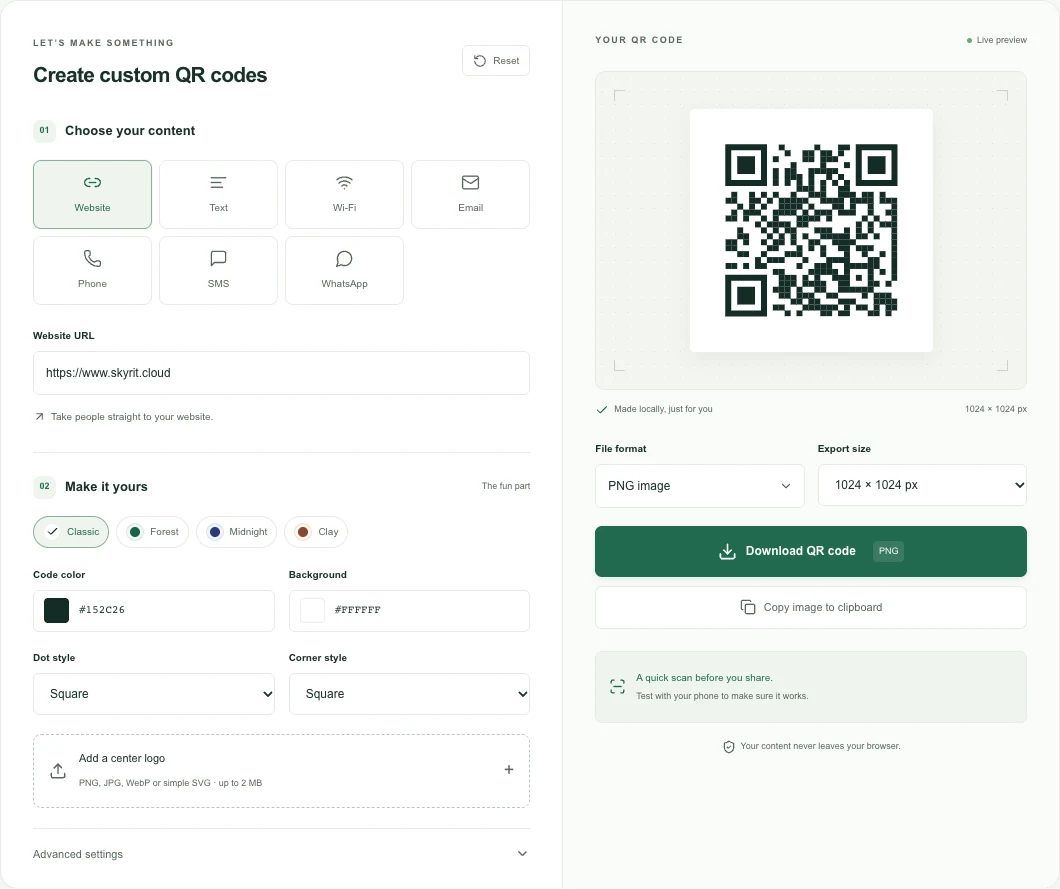
Made for everyday use
Simple idea.
Useful details.
Choose what to share
Create codes for websites, text, Wi-Fi, email, phone numbers, SMS and WhatsApp.
Make it yours
Choose code and background colors, change dot and corner styles, or add a center logo.
Download and use
Export PNG, SVG or JPEG. Image downloads are available at 512, 1024 and 2048 pixels.
Keep it in your browser
QR generation and logo processing happen locally in your browser. No account is required.
Where it helps
Useful ways
to put it to work.
A QR code can make the handoff between a physical object and a digital destination easier. QR Code Studio is useful when you already know what you want to share and need a code you can place in your own design, without setting up an account or an ongoing campaign.
Give a printed piece a useful next step
Point a flyer, event sign or business card to an existing landing page. Choose a destination that explains what someone should do after scanning.
Share a guest Wi-Fi network
Make a code for a network you intend to share, so guests can access its connection details. Keep in mind that the code contains the Wi-Fi credentials.
Help someone start a conversation
Use an email, phone, SMS or WhatsApp code on a handout or display. Test the result on the devices your audience is likely to use.
Getting started
How to use
QR Code Studio.
Choose the information to share
Open the studio, select a content type and enter the destination or details. For a website, use the complete URL of the page someone should reach.
Customize while keeping it readable
Adjust the colors, dot and corner styles, and optional logo. Keep strong contrast between the code and its background, with a clear margin around the code.
Pick a format for your design
Choose PNG or JPEG for an image, or SVG for artwork that needs to scale. Select an image size where applicable, then download the file.
Test the exported code
Scan the downloaded file with your phone before sharing or printing it. Check both the destination and whether the code scans at the size you plan to use.
Practical answers
Frequently
asked questions.
Is QR Code Studio free to use?
Yes. The available content types, customization options and downloads are free, and you can use the studio without registering an account.
Can I put my own logo inside the code?
Yes. The studio accepts PNG, JPEG, WebP and simple SVG logos up to 2 MB. Keep the logo small enough to preserve scanning, and test the exported code before using it.
Can I change the code after printing it?
These are static QR codes: the information is stored in the image itself. Changing that information requires a new code. If the code links to a website, you can still update the page at the same URL.
Does the QR code have an expiry date?
There is no expiry date built into a static QR image. A website or other linked destination still needs to remain available for the code to be useful.
Where are my content and logo processed?
QR generation and logo processing run in your browser. They are not sent to a QR generation server. Scanning a website code opens its destination, which has its own data practices.
Build around the idea
Need something
more specific?
Responsive landing pages and focused websites for personal brands, small businesses, products, and campaigns.
Scoped dashboards, internal tools, and lightweight applications shaped around operational work and business rules.
Behind the build
More to explore.
Need something built around your own workflow?
Explore Skyrit Studio